Showing posts with label Networking. Show all posts

Friday, February 19, 2021

How To Make Bootable Pendrive

Now a days it hard to find windows installation media in CD . So we have another options that is usb drive and to use usb drive as windows installation media its should be made bootable.


Before making Usb-drive to bootable Usb drive we must have knowledge of partition and file system which are used in  desktop as well as laptop.


Requirements
1. Pendrive greater thean 8 gb
2. Rufus software 
3. windows iso file 


Step 1. You have to get the windows iso file or you can download file from the internet.
Step 2. Download Rufus software from the internet and install the latest version.
Step 3. When you insert the usb drive , Rufus software will detect the drive and  you will get options to select windows installation file as shown in the figure .
Step 4. It will automatically detect the partition scheme and file system but you should know which partition scheme you are going to use  in your pc or laptop.
Step 5. Click on Start to start the process and wait until the process ends.
Step 6. Eject the usb drive and then insert  into the another pc to which you want to boot.

Friday, October 9, 2020

How to share your wifi internet connection to another computer with ethernet cable

 Step 1 : Goto Run command dialogue box  by pressing key Win + R


Step 2 : Type  ncpa.cpl and hit enter to open network connection as shown in above figure.

Step 3 : Select the wifi and right click on it and goto its properties.

Step 4 : Click on the sharing tab and then click allow and select the ethernet in home networking dropbox. 


Saturday, March 14, 2020

How To Add Two IP Address To Single Computer

Everyone who are engaged in the computer world must know to assign ip address to the computer either ipv4 or ipv6.
But it is possible to assign two ip address to the single computer .To do so, follow the steps as below:

Step 1: Open the network adapter settings and choose the adapter in which you want to add ip address mostly in the ethernet adapter.

Step 2:Right click on the adapter and click on the properties .

Step 3: Find the options internet protocol version 4 to add ipv4  address and click on that and new tab will pop up.

Step 4: At the bottom right corner, you will see the advance option click on it.
Step 5: Now you will see new pop up tab and click on the add option to add the different ip address .Please note that subnet mask should be same .

Monday, March 9, 2020

BDCOM OLT Configuration

BDCOM OLT Configuration

Login to the Bdcom Olt 

Command To See About Interface

Show interface brief 

Command to see ip interface

show ip interface brief

Command to see active onu

show epon active-onu 

Command to see offline onu

show epon inactive-onu

Command to see active onu of particular epon

show epon active-onu interface epon 0/1 (replace 0/1 with another interface as your requirement)

Command to see signal at onu end

show epon optical-transceiver-diagnosis interface EPON 0/1
show epon interface ePON 0/1:4 onu ctc optical-transceiver-diagnosis

Command to see mac address of connected onu to the Pon

show epon active-onu ( This show list of mac address along with the active onu)

Command to see mac address table of the OLT

show mac-address-table dynamic 
show ma-address-table
show mac address-table brief


Top Five Browser

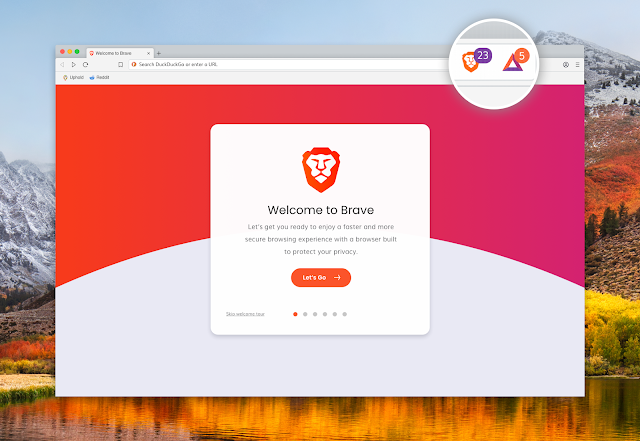
1 . Brave Browser Brave  Browser   is one of the best browser in the list even it is similar to all other browser because it has one of ...